


5 Common DTF Printing Problems (And How to Fix Them)

Table of Contents
- Why DTF Printing Goes Wrong for Beginners
- Problem 1: Print Head Clogging and White Ink Blockages
- Problem 2: DTF Transfer Peeling After Wash
- Problem 3: Dull Colours and Poor Vibrant Print Results
- Problem 4: Banding and Lines in Solid Colour Areas
- Problem 5: Film Peeling, Cracking and Adhesive Issues
- A Simple DTF Curing Temperature Guide
- Machine Dormancy, Storage and Waste Management
- Frequently Asked Questions
Last Updated: September 5, 2026
DTF printing is forgiving once you understand its quirks, but for new users the learning curve feels like a series of expensive paperweights. Most beginners encounter the same five issues: clogged print heads, peeling transfers, washed-out colours, banding, and adhesive failures. Nearly all stem from correctable habits rather than faulty equipment.
This guide breaks down the five most common problems, explains why they happen, and gives the precise fixes that work.
Why DTF Printing Goes Wrong for Beginners
Most beginners treat their DTF printer like a standard paper printer, and that mental model is the root cause of most failures. DTF printing relies on a delicate balance between ink viscosity, powder adhesion, and heat transfer that document printing does not require.
A DTF printer left idle for three days will clog (peer-reviewed research). A room with fluctuating humidity will produce inconsistent powder pickup. An ICC profile pulled from the wrong printer will mute your colours. These are process variables you control, not manufacturing defects.
A common mistake is changing multiple variables at once. If your print has banding, do not also swap your RIP settings and powder type in the same session. Change one variable, run a test, and evaluate.
Problem 1: Print Head Clogging and White Ink Blockages
Print head clogging is the most frequent problem for new users, and white ink is almost always the culprit. White pigment particles are heavier and more prone to settling than CMYK inks, so they separate and solidify when the printer sits idle (peer-reviewed research).
The fix is prevention through routine. Run a nozzle check and a small cleaning cycle every 24 hours, even if you are not printing. White ink circulation systems help but do not eliminate daily maintenance. If you already have a blockage, start with the built-in cleaning cycle rather than manual flushing, which risks damaging the print head.
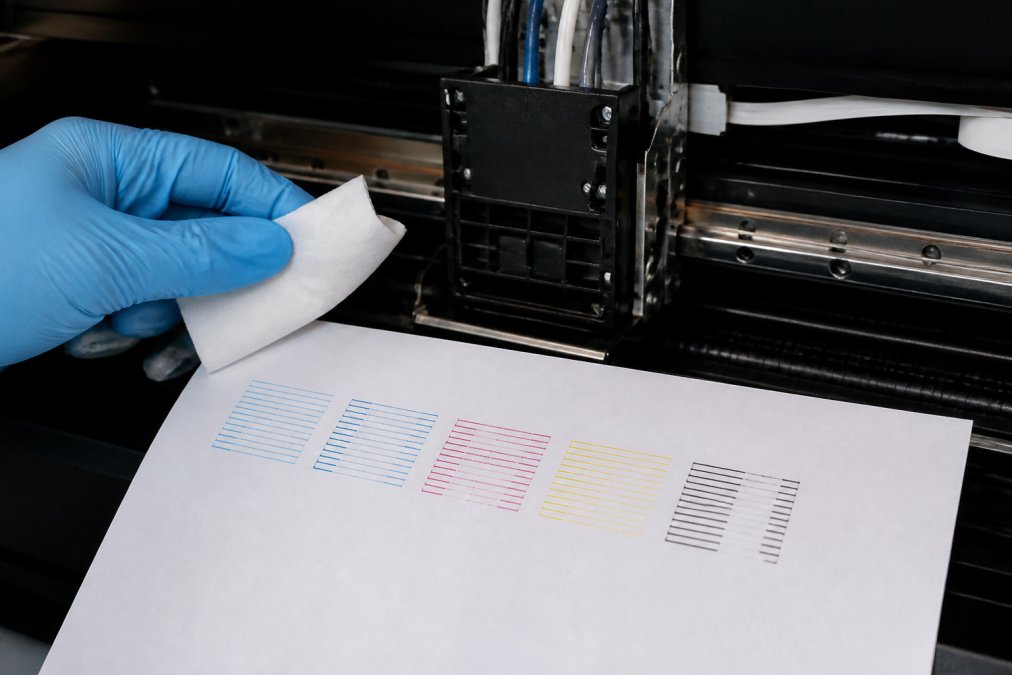
For longer pauses, follow the manufacturer's storage protocol. This usually involves flushing the lines with a cleaning solution and wrapping the print head to prevent drying.
Problem 2: DTF Transfer Peeling After Wash
DTF transfer peeling after wash is the single biggest complaint from customers, and it is almost always a curing problem, not a film problem. If your transfer cracks or peels after the first or second wash, the adhesive layer has not fully bonded to the fabric fibres.
Check Your Curing Temperature and Dwell Time
The most common cause of peeling is under-curing. If your temperature is too low or your press time too short, the adhesive melts partially but never reaches full activation.
A reliable test is the stretch test. After pressing, let the transfer cool, then stretch the fabric firmly. If you hear cracking or see the film lifting, increase your dwell time by five seconds before raising the temperature, as excessive heat can scorch synthetic fabrics. Also verify that your pressure is sufficient; a loose press leaves the adhesive sitting on top of the fibres instead of fusing with them.
Problem 3: Dull Colours and Poor Vibrant Print Results
If your prints look washed out or muddy compared to your screen, you are fighting a colour management issue, not a printer fault. Your monitor emits light in RGB; your DTF printer lays down translucent CMYK inks over an opaque white base. You will never get a perfect match without a managed workflow.
The Real Culprit Is Often Your RIP Settings, Not Your ICC Profile
Most new users assume installing the correct ICC profile solves everything, but the profile is only one link in the chain. Your RIP software, whether Cadlink DTF Studio, Ergosoft, or a free option like Kothari, controls how that profile is applied. A common pattern is leaving the rendering intent set to 'Perceptual' when you should use 'Relative Colorimetric' for solid logos and spot colours. Perceptual compresses the entire gamut, muting saturated colours; Relative Colorimetric maps out-of-gamut colours to the nearest printable hue, preserving vibrancy.
Another frequent mistake is double colour management. If your design software (such as Photoshop or Illustrator) applies a colour conversion and your RIP applies another, colours get shifted twice. Disable colour management in the design application, export as a plain PDF or PNG, and let the RIP handle the conversion.
White Ink Density: The Layer Order Trap
For vibrant colours, the key is proper layer order. The white ink layer sits beneath the CMYK colours, acting as an opaque base. If your white layer is too thin, the garment colour shows through and mutes your design. If it is too thick, it can crack.
Most RIP software lets you adjust white ink density as a percentage or by the number of white passes. A common starting point is 100%, but that is not always optimal. On a dark garment you need full opacity; on a white or light garment you can often reduce the white layer to 60-80% without losing vibrancy, saving ink and reducing cracking risk.
White ink density interacts with the CMYK layer. If your white layer is too thin, the CMYK inks sit on a greyish base and appear dull. If it is too thick, the CMYK inks can pool on the surface, causing mottling. Run a white density test: print the same design at 60%, 80%, 100%, and 120% white, transfer onto the same garment type, and compare vibrancy and flexibility after a wash cycle.
A Practical Colour Calibration Workflow
Here is a workflow that takes under an hour and eliminates most colour complaints:
- Print a standard test target, such as an IT8 chart or a simple gradient and colour patch sheet, using your normal CMYK and white settings.
- Transfer the test target onto the exact garment colour you use most often (black cotton, white polyester, etc.).
- Compare the transferred output against your monitor display under consistent lighting. Daylight or a 5000K lamp is ideal; avoid mixed room lighting.
- Adjust the ICC profile or rendering intent in your RIP based on what you see. If colours are consistently too dark, check your ink limiting settings, most RIPs allow you to reduce total ink coverage, which prevents oversaturation and muddiness.
- Document the winning combination, profile, rendering intent, white density, and ink limit, for each garment type. This becomes your reference for future jobs.
What to Do When Colours Are Still Dull After Profiling
If colours are still dull after verifying your profile, rendering intent, and white density, check your ink health. Expired CMYK ink or ink stored in fluctuating temperatures loses pigment strength. Also check that your print head is firing all nozzles correctly, a partially clogged nozzle in the magenta or cyan channel will shift the entire colour balance. Run a nozzle check before every colour-critical job.
Finally, consider your film choice. Some DTF films have a matte finish that scatters light slightly, reducing perceived vibrancy compared to a glossier film. If you are chasing maximum pop, test a high-gloss transfer film side-by-side with your current film.
Problem 4: Banding and Lines in Solid Colour Areas
Banding appears as horizontal or vertical lines across solid colour areas, and it signals a physical printing issue rather than a colour one. The usual causes are a partially clogged nozzle, incorrect head height, or a misaligned print head. Banding is rarely a single-cause problem, so diagnose systematically, changing one variable at a time.
Step 1: Rule Out Nozzle Clogging First
Start with a nozzle check print. If you see gaps in the test pattern, run a cleaning cycle and re-test. Do not proceed until the nozzle check is clean. A single missing nozzle in a solid colour area will produce a visible line that repeats across the print. If the nozzle check shows intermittent firing, run a second cleaning cycle and wait 15 minutes before testing again. Aggressive cleaning cycles can damage the print head, so space them out.
Step 2: Check Head Height and Platen Gap
The print head should sit at the manufacturer's specified distance from the film. Too far, and the ink droplets scatter; too close, and the head can scrape the film. Most DTF printers specify a gap between 1.5mm and 2.5mm. Use a feeler gauge rather than guessing. If you have recently changed film rolls, check the gap again, different film thicknesses can alter the effective distance.
Step 3: Examine Pass Count and Print Resolution
Banding can also be a software issue. In your RIP software, check the print resolution and the number of passes. Lower resolution with fewer passes speeds up production but sacrifices solid colour uniformity. If you are printing large blocks of colour, increase the pass count for a smoother finish.
Here is where most beginners go wrong: they increase the resolution but leave the pass count at the default. A higher pass count (e.g., 6 or 8 passes) lays down a thinner layer of ink per pass, which dries more evenly and reduces the visible 'band' where adjacent passes meet. A lower pass count (e.g., 2 or 4 passes) increases throughput but makes banding more likely, especially in dense colours like black or navy.
A practical starting point for solid colour work is 6 passes at 720x720 dpi. If banding persists, increase to 8 passes before increasing resolution. Higher resolution without more passes often makes banding worse because the head tries to place more droplets in the same number of passes, causing ink to pool and create darker lines at the edges of each pass.
Step 4: Check Inter-Pass Drying and Ink Saturation
A less obvious cause of banding is that the ink is not drying fast enough between passes. If your printer has a platen heater or you are printing in a humid environment, the ink can remain wet and smear into the next pass. Most RIP software includes an ink limit setting (often called 'total ink limit' or 'TIL'). If your total ink coverage exceeds the film's absorption capacity, typically around 180-200% for DTF films, the excess ink creates pooling that shows up as dark bands (peer-reviewed research).
Reduce your ink limit in 5% increments and re-test. Colours may look slightly less saturated, but the banding disappears. A smooth, even colour at 180% ink coverage looks far better than a banded print at 200%.
Step 5: Head Alignment and Bi-Directional Printing
If you still see banding after ruling out nozzles, head height, and pass count, check your head alignment. Most RIP software includes an alignment test pattern. If the vertical and horizontal lines are misaligned, run the automatic alignment routine. If you are using bi-directional printing, misalignment produces a characteristic 'sawtooth' pattern on the edges of solid areas. Switching to uni-directional printing eliminates this but doubles print time, use it only as a diagnostic tool.
The Environmental Factor: Humidity and Static
Banding can also be triggered by environmental conditions. High humidity (above 65% RH) causes ink to absorb moisture from the air, changing its viscosity. Low humidity (below 30% RH) creates static electricity, which can deflect ink droplets and cause random lines. If banding appears only at certain times of day, check your room's relative humidity. A simple hygrometer costs a few pounds and can save hours of false troubleshooting. Aim for 40-55% RH.
If static is the issue, you will often see banding accompanied by ink 'spray' or fine mist around the print. An anti-static bar fitted near the film path, or simply grounding the printer frame, can eliminate this. Some users also find that changing the film roll helps, as some films generate more static than others when unwinding.
Problem 5: Film Peeling, Cracking and Adhesive Issues
Film peeling during the transfer process, where the film lifts off the garment instead of releasing cleanly, is a different failure from post-wash peeling. This usually points to an issue with the transfer film itself or the peel method.
Hot peel versus cold peel is the first thing to check. Some films require you to peel the carrier immediately while hot, while others need to cool completely. Using the wrong method for your film type will cause the adhesive to stick to the carrier instead of the garment.
Adhesive distribution also matters. If your powder application is uneven, thin spots will fail to bond. Check that your powder shaker is distributing an even layer across the entire print, including the edges. After shaking, inspect the film under good light before curing.
A Simple DTF Curing Temperature Guide
Getting the cure right solves more problems than any other single adjustment. While exact numbers vary by powder brand and film type, the following ranges work for most standard DTF materials.
| Material | Curing Temperature | Dwell Time | Peel Method |
|---|---|---|---|
| Standard DTF powder | 160-170°C | 10-15 seconds | Warm or cold peel |
| Stretch film | 150-160°C | 12-15 seconds | Cold peel |
| High-opacity white | 160-165°C | 15-20 seconds | Cold peel |
Always run a test transfer on a scrap garment before committing to a full production run. Document the settings that work for each film and powder combination you use. This guide will save you hours of wasted material.
Machine Dormancy, Storage and Waste Management
Long-term storage is where many beginners ruin their equipment without realising it. If you plan to pause production for more than a week, do not just turn the machine off. Flush the ink system with a cleaning solution, remove the film roll, and store the print head in a sealed environment with a damp sponge to prevent drying.
Waste management is an overlooked part of DTF printing problems. Spent transfer film and excess powder are not general household waste. Check your local council guidelines for disposing of ink cartridges and adhesive powders, as some require specialist recycling. Store powder in a sealed container away from moisture, as humidity causes clumping that ruins adhesive distribution.
Getting consistent results from DTF printing comes down to respecting the process. The five problems covered here are all solvable with routine maintenance, precise curing, and disciplined troubleshooting. When you are ready to move from test prints to production, BB5wholesale makes the transition simple. Our DTF Transfers By Size service handles the printing for you, while the Build Your Gang Sheet option lets you maximise every inch of film and reduce material waste. Upload your gang sheet and let our team deliver press-ready transfers with consistent quality.
Frequently Asked Questions
Why is my DTF print peeling after washing?
Peeling after washing usually means the adhesive powder did not cure fully or the transfer was pressed at the wrong temperature. Check your heat press settings with a DTF curing temperature guide: most powders need 160-170°C for 15-20 seconds. Also press with medium to firm pressure and allow the garment to cool completely before peeling the film. Use a high-quality hot melt powder and store unused transfers in a dry place.
What causes white ink clogging in DTF printers?
White ink is denser and more prone to settling than other colours. If the printer sits idle for more than a day, pigment settles in the dampers and print head. Run a nozzle check daily and use the printer's built-in white ink circulation cycle. If you plan to stop printing for a week or more, flush the system or store the machine according to the manufacturer's long-term storage guidance.
How do I get vibrant colours in my DTF transfers?
Start with a properly calibrated ICC profile for your specific printer, ink and transfer film combination. Print a test file with colour swatches and adjust your RIP software settings. A higher white ink density underneath the colour layer makes tones pop on dark garments. Avoid over-saturating the design, which causes ink pooling and longer drying times.
How do I prevent ink bleeding in DTF printing?
Ink bleeding usually comes from printing too much ink for the film to hold or using the wrong film type. Lower your ink saturation in the RIP software and check that your colour profile is correct. Ensure the printed film is fully dry before applying powder. Humidity above 60% slows drying and causes ink to spread. Keep your print area at 40-60% humidity.