


How to Print Vibrant Colors with DTF Transfers

Table of Contents
- Understanding Color Spaces: CMYK vs RGB for DTF Printing
- DTF Printer Color Management: Setting Up ICC Profiles
- Preparing High-Resolution Artwork for Maximum Vibrancy
- Optimizing White Underbase and Ink Density
- DTF Transfer Pressing Temperature and Time: Getting It Right
- Troubleshooting Dull DTF Prints: Common Issues and Solutions
- Environmental Factors and Printhead Maintenance for Consistent Color
- Conclusion
Last Updated: August 27, 2026
Understanding Color Spaces: CMYK vs RGB for DTF Printing
RGB is light-based (red, green, blue) and displays on your screen. CMYK is pigment-based (cyan, magenta, yellow, black) and is what your DTF printer actually uses. Most design files start in RGB, but DTF printers work in CMYK. The conversion between them is where colour shifts happen and vibrancy is lost.
When you send an RGB file directly to a DTF printer without converting to CMYK first, the RIP software makes the conversion automatically, but it doesn't prioritize colour saturation. Reds turn orange. Vibrant blues flatten to navy. The fix is simple: convert your artwork to CMYK in your design software (Photoshop, Illustrator, or similar) before building your gang sheet. This gives you control over the conversion and lets you catch problems before they reach the printer.
RGB has a wider colour gamut than CMYK, meaning some colours cannot be reproduced in physical form. Bright neon pinks, electric cyans, and saturated lime greens often lose intensity during conversion. Accepting this limitation and working within CMYK's actual range is how you maintain vibrancy in the final print.
DTF Printer Color Management: Setting Up ICC Profiles
An ICC profile is the translator between your design file and your actual printer. It tells the printer exactly how to interpret each colour value so that what prints matches what you expect. Without a proper ICC profile, the same design prints differently on different printers or even on the same printer on different days.
Most DTF printer manufacturers provide ICC profiles specific to their machines. If you're using a third-party DTF service, ask for their specific ICC profile and install it on your computer before designing. Setting up an ICC profile involves downloading the profile file from your printer manufacturer and installing it in your operating system's colour management folder: C:\Windows\System32\spool\drivers\color on Windows, or Library/ColorSync/Profiles on macOS.
The critical step is embedding the profile into your exported file. When you save your artwork as a PDF or TIFF for DTF printing, always embed the colour profile. An embedded profile travels with your file and ensures consistent colour reproduction no matter where the file goes.
Colour profile calibration is an ongoing process. Printers drift over time as inks age and environmental conditions shift. Many print shops recalibrate their ICC profiles every 3-6 months using a colour reference chart. For smaller operations, periodic test prints with known colour references help catch drift early.
Preparing High-Resolution Artwork for Maximum Vibrancy
DTF printing requires a minimum of 300 DPI (dots per inch) for crisp, vibrant results (ISO technical report on graphic technology and printing). Anything below 200 DPI will look pixelated and soft. Always start with high-resolution artwork. If you're working from a photo, shoot at the highest resolution your camera allows. If you're creating vector graphics (which have infinite resolution), export them at 300 DPI minimum.
Vector graphics (Illustrator files, SVG, EPS) are superior to raster images (JPEGs, PNGs) for DTF printing because they scale without quality loss. If you only have raster images, keep them at their original size or smaller, never enlarge them beyond 110% of the original dimensions.
Work in 8-bit colour (256 levels per channel) minimum, preferably 16-bit if your design software supports it. For DTF, always export as TIFF or PDF with embedded ICC profile. TIFF uses lossless compression and preserves colour information better than JPEG, which uses lossy compression and discards colour data.
Optimizing White Underbase and Ink Density
The white underbase is the foundation of vibrant DTF prints on dark fabrics. Without it, the transfer's colours blend into the dark fabric, losing saturation. The white ink sits down first as a base layer, then the CMYK colours print on top of it.
White underbase thickness is a balance. Too thin, and the colours lack opacity. Too thick, and the transfer becomes stiff. The sweet spot is typically 100-120% ink density for the white layer. Ink density for CMYK colours should sit around 80-100% of maximum. Going above 100% risks over-saturation, which causes ink bleeding and colour shift.
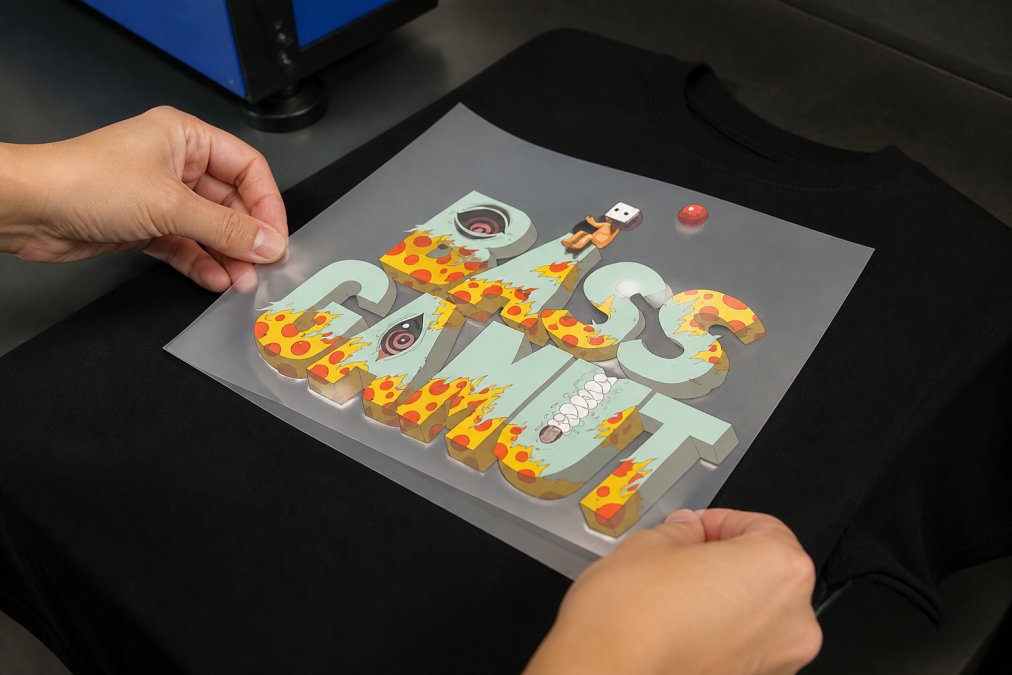
For detailed artwork with fine lines, a full underbase ensures all colours remain vibrant. For simpler designs, a slightly reduced underbase can improve wearability without sacrificing colour quality.
Testing your underbase and ink density settings on scrap fabric is essential before running a full gang sheet. Print a small test transfer, press it onto the exact fabric you'll be using, and wash it a few times. If colours fade or the transfer peels, your ink density is too low or your underbase is insufficient. If the transfer feels stiff or colours bleed together, your ink density is too high.
DTF Transfer Pressing Temperature and Time: Getting It Right
Temperature and dwell time work together to bond the transfer to fabric. Most DTF transfers require 160-180°C for 10-15 seconds (Peer-reviewed research on textile printing). The exact temperature depends on your transfer film and ink system. Always check the manufacturer's specifications for your specific DTF transfers.
Pressure is typically 3-4 bar (around 45-60 PSI). Excessive pressure can crush fine details and cause ink to spread beyond intended boundaries. Insufficient pressure leaves parts of the transfer unbonded. Consistent, moderate pressure across the entire transfer is the goal.
Dwell time affects colour vibrancy and durability. The sweet spot is typically 10-15 seconds, long enough for proper bonding, short enough to preserve colour accuracy. After pressing, let the transfer cool on the fabric for at least 30 seconds before peeling back the transfer film. Premature peeling while still hot can cause incomplete bonding or colour smudging.
Pre-pressing the fabric before applying the transfer improves results. A 3-5 second pre-press at the same temperature removes moisture and wrinkles, ensuring even contact between the transfer and fabric. This is especially important for knit fabrics, which can trap air pockets.
Troubleshooting Dull DTF Prints: Common Issues and Solutions
Dull colours usually point to one of three problems: inadequate white underbase, insufficient ink density, or improper colour profile conversion. Start by checking your ICC profile. Verify you're converting to CMYK using the correct profile for your specific printer before uploading your gang sheet.
Pixelation or soft edges indicate low resolution. If your artwork is below 300 DPI, re-export at 300 DPI minimum. If you're enlarging a raster image, avoid scaling up beyond 110% of the original size.
Colour shift between your screen and the printed transfer is normal to some degree because RGB and CMYK have different colour gamuts. However, extreme shifts suggest a profile mismatch. Ensure your design software is set to the correct CMYK profile before exporting.
Ink bleeding means ink density is too high or dwell time is excessive. Reduce ink density by 5-10% and test again. If bleeding persists, shorten dwell time by 2-3 seconds.
Fading after washing indicates insufficient ink density or inadequate white underbase. Increase white underbase density to 110-120% and CMYK density to 90-100%, then test on the exact fabric you'll be using.
Uneven colour saturation across the transfer suggests a printhead issue. Perform a nozzle check to verify all nozzles are firing. If some nozzles are clogged, run the printer's cleaning cycle.
Environmental Factors and Printhead Maintenance for Consistent Color
Humidity and temperature in your print room affect ink flow and colour consistency. Humidity below 30% causes inks to dry too quickly, leading to colour shift and potential nozzle clogs. Humidity above 60% slows drying and can cause ink bleeding. Aim for 40-55% relative humidity, as commonly recommended for print environments.
Keep your print room between 18-24°C. Avoid placing your DTF printer near windows, doors, or air conditioning vents where temperature swings occur.
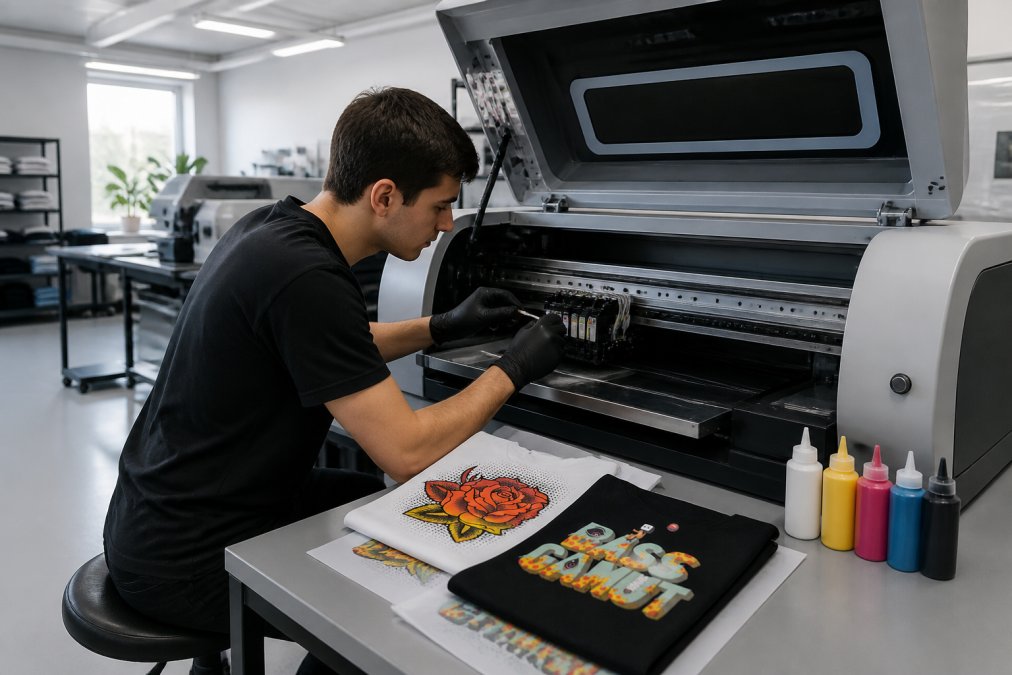
Printhead maintenance is non-negotiable for colour consistency. Run a nozzle check daily before starting production. If you see gaps in the nozzle check pattern, run the printer's automatic cleaning cycle immediately. Manual cleaning becomes necessary when automatic cycles don't clear clogs. This involves removing the printhead and soaking it in cleaning solution for 30 minutes to several hours. Always use distilled water, never tap water, which contains minerals that damage printheads.
Using original manufacturer cartridges ensures colour consistency. Third-party or refilled cartridges introduce variables that can shift colours. Check expiration dates and replace cartridges that have been installed for more than 6 months, even if they're not empty.
Store transfer film in a cool, dry place (ideally 15-25°C and below 50% humidity). Store ink cartridges upright in their original packaging, away from direct sunlight. Keep your work area clean and use a dust-free mat under your heat press.
Achieving vibrant DTF prints requires attention to colour spaces, ICC profiles, file resolution, underbase settings, pressing parameters, and environmental conditions. Each variable affects the final result. Once you dial in your settings, the process becomes repeatable. Test thoroughly on scrap fabric before running full production and keep detailed notes on settings that produce your best results.
When you're ready to scale production, using a service like BB5wholesale's gang sheet builder eliminates many variables. The platform helps creators and businesses with an intuitive gang sheet builder, ensuring professional results and efficient production. Upload your gang sheet today and see how professional colour management simplifies your workflow.
| Variable | Optimal Range | Impact on Vibrancy |
|---|---|---|
| File Resolution | 300 DPI minimum | Low resolution causes pixelation and colour loss |
| White Underbase Density | 100-120% | Too thin loses opacity; too thick causes stiffness |
| CMYK Ink Density | 80-100% | Over-saturation causes bleeding; under-saturation dulls colours |
| Press Temperature | 160-180°C | Too cool won't adhere; too hot fades colours |
| Dwell Time | 10-15 seconds | Too short won't bond; too long causes colour shift |
| Humidity | 40-55% | Outside range causes drying issues and colour shift |
| Printhead Maintenance | Daily nozzle checks | Clogs reduce colour saturation and create gaps |
Frequently Asked Questions
How do I know if my ICC profile is causing dull DTF prints?
Run a nozzle check and print a test design with known bright colors. If the output appears washed out compared to your screen preview, your ICC profile likely needs calibration. Check that your RIP software is using the correct profile for your ink and substrate combination. Many dull prints stem from mismatched profiles between your design software and printer settings. Recalibrate your color profile and test again with the same design file.
What DPI should I use for vibrant DTF transfers?
Use 300 DPI minimum for all artwork destined for DTF printing. This resolution ensures sufficient detail and colour accuracy without pixelation. Lower DPI (72 or 150) produces visible pixelation and reduces colour saturation. For gang sheets with multiple designs, maintain 300 DPI across all artwork to ensure consistent vibrancy. Higher DPI (600+) offers minimal visual improvement but increases file size and processing time unnecessarily.
Why do my DTF transfers look faded after pressing?
Fading after pressing typically results from incorrect heat press temperature, excessive dwell time, or low white underbase opacity. Verify your heat press is set to the correct temperature for your specific DTF ink and substrate. Under-pressing leaves ink undercured; over-pressing can cause ink to spread and lose saturation. Check that your white underbase layer has sufficient opacity to support colour vibrancy. Environmental humidity during pressing can also affect final results.
Can I use RGB artwork directly for DTF printing?
No. Convert all artwork to CMYK before printing. RGB colour space contains colours outside the CMYK gamut, so direct RGB printing produces colour shifts and reduced vibrancy. Most design software allows CMYK conversion; apply this before uploading to your RIP software. This ensures the colours you see in your design translate accurately to the final DTF transfer. BB5wholesale's gang sheet builder accepts artwork in multiple formats, but CMYK conversion guarantees optimal colour reproduction.
This article was written using GrandRanker